Back to All Prompts
ChatGPT • 16:9
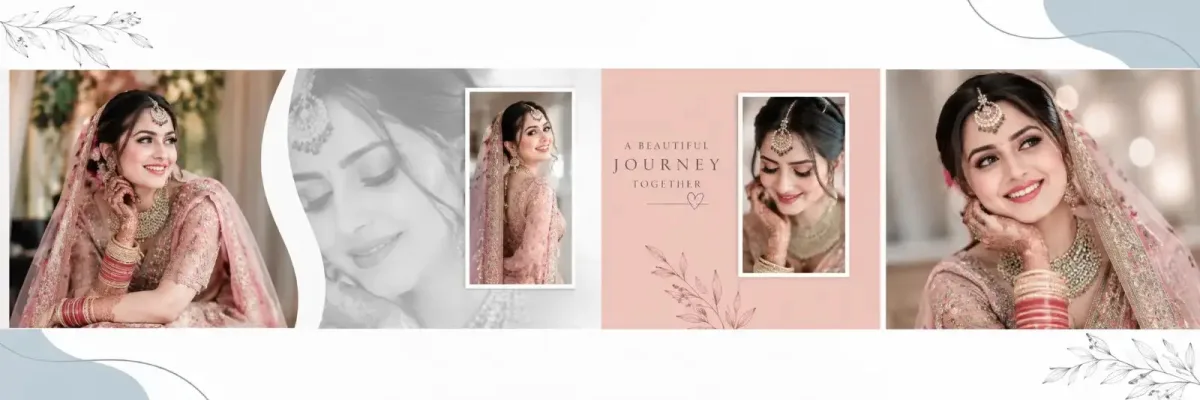
12 x 36 Bridal Editorial Wedding Photo Album Template — ChatGPT AI Photography Prompt Recipe on Faymas
Product & Brand by Alex Rivera

12 x 36 Bridal Editorial Wedding Photo Album Template

Exact Prompt Recipe Scroll to read more
## Reusable Album Template Prompt — Exact 4-Photo Bridal Editorial Layout — 12″ H × 36″ W — Exact 3:1 Landscape Create a **premium photorealistic bridal/wedding album spread** that recreates the supplied reference image **as closely and precisely as possible**. This is an **EXACT-LAYOUT reusable album template**. The **reference image is the absolute source of truth for layout and design**. The **user-uploaded photos are the absolute source of truth for the people and photo content**. Do not redesign, reinterpret, rebalance, simplify, modernize, or creatively alter the reference layout. --- # FIXED CANVAS The final canvas is strictly locked to: **36 inches wide × 12 inches high** **Exact 3:1 landscape aspect ratio** Requirements: - keep the spread strictly horizontal - width must remain exactly three times the height - do not convert to portrait - do not crop the final page into another ratio - do not stretch or compress the overall canvas - preserve the same wide panoramic structure as the reference --- # MANDATORY ASK-FIRST WORKFLOW Before generating the album, check whether all mandatory inputs have been provided. This template requires: - **4 uploaded photos** - **1 exact caption/title/sentence**, unless the user wants no text If both are missing, respond only: **“Please upload 4 photos for this template and tell me the exact caption/title/sentence you want displayed. If you don’t want any text, say ‘no text’.”** If the user uploads the 4 photos but has not provided the text preference, respond only: **“Please tell me the exact caption/title/sentence you want displayed. If you don’t want any text, say ‘no text’.”** If fewer than 4 photos are uploaded, ask only for the remaining required photos and any missing text preference. Do **not** generate the image until all mandatory requirements are satisfied. Once all required photos and text preference are available, **automatically generate the album image**. Do not return the prompt again and do not ask additional questions. --- # ABSOLUTE REFERENCE LAYOUT LOCK Reproduce the reference image’s layout **as literally as possible**. Treat all of the following as fixed: - exact photo-slot locations - exact relative photo sizes - exact photo-frame proportions - exact horizontal placement - exact vertical alignment - exact amount of white space - exact curved-divider position - exact faded grayscale portrait area - exact narrow framed photo position - exact coral/blush rectangular panel - exact small framed portrait inside the coral panel - exact large right-side portrait - exact botanical decoration placement - exact pale blue-gray abstract corner shapes - exact margins - exact spacing - exact overlaps - exact visual hierarchy - exact overall balance Do **not**: - move photo slots - enlarge one image unnecessarily - shrink another image - change frame shapes - change the curve position - change the coral panel size - replace the grayscale portrait treatment - rearrange decorative elements - convert the composition into another collage style - add extra frames or photos - remove structural elements visible in the reference The goal is: **same layout, same geometry, same structure — only the uploaded photos and optional user text change.** --- # FIXED PHOTO COUNT This template uses exactly **4 uploaded photos**. Use each uploaded photo once only. Do not: - duplicate a photo - invent extra photos - reuse one photo in multiple main slots - replace an uploaded photo with generated content --- # FIXED PHOTO-TO-SLOT MAPPING Use uploaded photos strictly in this order: ### Photo 1 Place in the **large far-left vertical image slot**. ### Photo 2 Place in the **narrow center-left vertical framed image slot**. Also use Photo 2, or the most compositionally suitable uploaded portrait if necessary, only for the **soft faded grayscale background portrait treatment** directly behind/adjacent to this area. The faded portrait is a design treatment, not an additional photo slot. ### Photo 3 Place in the **small vertical framed portrait inside the coral/blush panel**. ### Photo 4 Place in the **large far-right vertical portrait slot**. Do not change this mapping. --- # ABSOLUTE PHOTO PROPORTION LOCK This is a critical rule. The user-uploaded photos must **never be stretched or distorted** to match the template. For every uploaded image: - preserve its original natural proportions - preserve correct face proportions - preserve correct body proportions - preserve correct clothing proportions - preserve correct object geometry - preserve natural perspective Never: - stretch vertically - stretch horizontally - squeeze - squash - widen - narrow - warp - skew - distort - reshape the person to fit the frame If an uploaded image has a different aspect ratio from the fixed template slot: **scale the photo proportionally and crop excess image area.** Use: - proportional scaling - subject-aware cropping - repositioning within the fixed frame - safe face-aware framing The **frame remains fixed**. The **photo adapts through cropping, not stretching**. The frame may crop parts of the original image if necessary, but the image itself must remain geometrically correct. --- # SUBJECT-AWARE CROPPING RULE When fitting uploaded photos into the fixed reference slots: Prioritize keeping visible: - faces - heads - important body areas - hands where possible - clothing details - important jewelry - central subjects Avoid: - cutting through faces - awkward neck crops - removing important facial features - unnecessary limb cuts - extreme zooming However, never alter the fixed slot dimensions to save more of the photo. The **layout stays fixed**. Only the internal photo positioning may change. --- # LEFT SECTION — EXACT STRUCTURE Recreate the left side exactly like the reference. ## Large left photo Place **Photo 1** in the far-left vertical rectangular image area. Keep: - same approximate width - same approximate height - same vertical placement - same edge alignment - same scale relationship to the rest of the spread Do not enlarge it beyond the reference proportion. --- # CURVED DIVIDER Immediately to the right of the large left photo, recreate the large **white sweeping curved divider** seen in the reference. The divider must: - retain the same direction - retain the same approximate curvature - retain the same visual thickness - separate the left image from the faded portrait region - not be replaced by a straight line - not be removed --- # FADED GRAYSCALE PORTRAIT AREA Behind the narrow center-left framed photo, recreate the same large faded grayscale portrait treatment. This should look like: - a softly enlarged portrait - monochrome / grayscale - low contrast - pale - elegant - semi-transparent - blended into the white/light background Do not make it dark or dominant. Do not turn it into a separate hard-edged photo frame. It should remain a **soft background portrait layer**, like the reference. --- # CENTER-LEFT NARROW FRAME Place **Photo 2** into the tall narrow vertical frame. Match the reference: - narrow upright rectangle - white/light border - vertically centered - positioned over the faded background portrait - same approximate frame width - same approximate frame height - same visual spacing around the frame Do not convert it into: - a square - circle - oval - arch - large rectangle --- # CORAL / BLUSH PANEL Recreate the same coral/blush panel in the center-right portion of the image strip. Keep: - same approximate width - same vertical position - same proportion - same muted warm pink/coral appearance Do not replace it with a random color. The panel should remain soft and elegant rather than bright or neon. --- # SMALL FRAMED PHOTO INSIDE CORAL PANEL Place **Photo 3** inside the small vertical framed portrait located within the coral panel. Match the reference: - upright rectangular frame - pale/white border - same approximate placement - same approximate size - balanced negative space around it Do not center it differently if the reference is slightly offset. Follow the reference placement. --- # CORAL PANEL BOTANICAL DETAIL At the lower portion of the coral panel, recreate the same subtle floral/botanical decorative silhouette. Keep it: - understated - tonal - elegant - small - secondary to the photo Do not replace it with large flowers or heavy ornamentation. --- # FAR-RIGHT LARGE PHOTO Place **Photo 4** into the large far-right portrait area. Match the reference: - same approximate width - same approximate height - same right-edge alignment - same dominance - same close-up editorial feeling Do not enlarge this image beyond the reference structure. Do not allow it to consume the coral panel. --- # TOP WHITE SPACE Preserve the large open white/ivory area above the main image strip. The top must remain mostly empty. Do not fill it with: - photos - patterns - extra frames - large text - heavy decoration Recreate the subtle decorative elements only. --- # TOP-LEFT BOTANICAL LINE ART Recreate the same faint botanical line drawing near the top-left corner. Keep it: - light - subtle - thin-line - low contrast - partially cropped at the edge Do not make it bold. --- # TOP-RIGHT ABSTRACT SHAPE Recreate the pale blue-gray organic corner shape at the top-right. Keep approximately the same: - size - position - softness - shape weight Include the subtle fine curving line detail seen around this area. --- # BOTTOM WHITE SPACE Preserve the large open white/ivory area below the central collage. Do not enlarge the photos downward to fill this area. This whitespace is part of the exact design. --- # BOTTOM-LEFT ABSTRACT SHAPE Recreate the pale blue-gray organic shape entering from the lower-left. Maintain: - same visual scale - same edge-cropped appearance - same muted tone Include the thin sweeping line passing through/near this area as in the refe
Scroll for more
App: ChatGPT Ratio: 16:9
Photo Reproduction Guide

How to Recreate This Photo in ChatGPT

Follow this quick 4-step workflow to generate an identical visual style using the exact parameters tested for 12 x 36 Bridal Editorial Wedding Photo Album Template.

1

Copy the Recipe

Click the Copy Full Prompt button above. All key descriptors, lighting commands, and lens tags are copied directly to your clipboard.

2

Open ChatGPT

Open your ChatGPT app or web interface (e.g. ChatGPT chat, Bing Image Creator prompt bar, or Midjourney Discord).

3

Set 16:9 Ratio

Set your canvas size to 16:9. This gives you the natural composition shown above.

4

Customize Subject

Want your own face or a different subject? Simply change the character description or hair/clothing while keeping the lighting and camera tokens intact!
Pro Tip: To maintain this exact lighting in ChatGPT, keep the camera, aperture, and lighting keywords unmodified.
✓